LightCraft review: a full grading desk in the browser, histogram and five adjustment groups included
A Lightroom alternative for colour grading, presets and batch processing.
Independent third-party directory, not the official site. Always download from official channels.
What you're doing: Give a set of photos one consistent look / batch-export with presets
LightCraft is a photo colour-grading tool, not a retouching or compositing app. The typical job: even out exposure, white balance, colour and contrast across a batch of photos, then apply the same treatment to all of them — travel shots, product images, event photography.
| What you land in | Straight into the grading workspace: the photo in the middle, Histogram at top right, and an adjustment panel on the right split into five groups — Edit / Light / Color / Effects / Detail (with sliders for Intensity, Clarity, Highlights and more) — plus a preset thumbnail strip and Copy Edit Settings along the bottom, with a Color / BW toggle at bottom right |
|---|---|
| Do I have to install anything | No. The official web build runs in the browser: no installation, no sign-up, and your photos never leave your machine |
| Can it be hosted online | Yes. The wasm build measured 24 MiB, **below Cloudflare Pages' 25 MiB per-file limit — so technically it can be hosted as a click-and-go page** |
- Download
lightcraft-web-*.zipfrom the official release, unzip it, and open it with any static server (or install the desktop build) - Once your photos are imported, check the Histogram at top right first: it shows whether highlights are blown or shadows are crushed — the right first move in grading, and more reliable than dragging sliders blind
- Work in the order Light → Color → Effects → Detail; each group has its own strength sliders
- When you like what you see, click Copy Edit Settings and apply it to the rest of the set (this is what keeps a batch consistent); the bottom-right toggle switches to BW for a black-and-white preview
When to switch to something else: If you need RAW formats, batches in the thousands, or professional colour management (calibrators/ICC), use Lightroom or darktable.
Hands-on test (2026-10-21, official web build v0.10.0)
Hands-on with the official web build (Ubuntu, lightcraft-web-0.10.0.zip, zero install).
- A complete grading workspace with no install: photo preview in the middle, Histogram at top right, five adjustment groups on the right, preset thumbnail strip along the bottom
- The five panels are Edit / Light / Color / Effects / Detail, and the Light group exposes sliders for Intensity, Clarity, Highlights and more (per our screenshots)
- The bottom holds a preset thumbnail strip (a row of previews in different styles) plus the Copy Edit Settings button and a Color / BW switch in the bottom-right corner
- The wasm build measured 24 MiB (about 10 MiB gzipped) — just under Cloudflare Pages' 25 MiB limit
- 0 JS errors at startup; the photo and histogram both rendered correctly
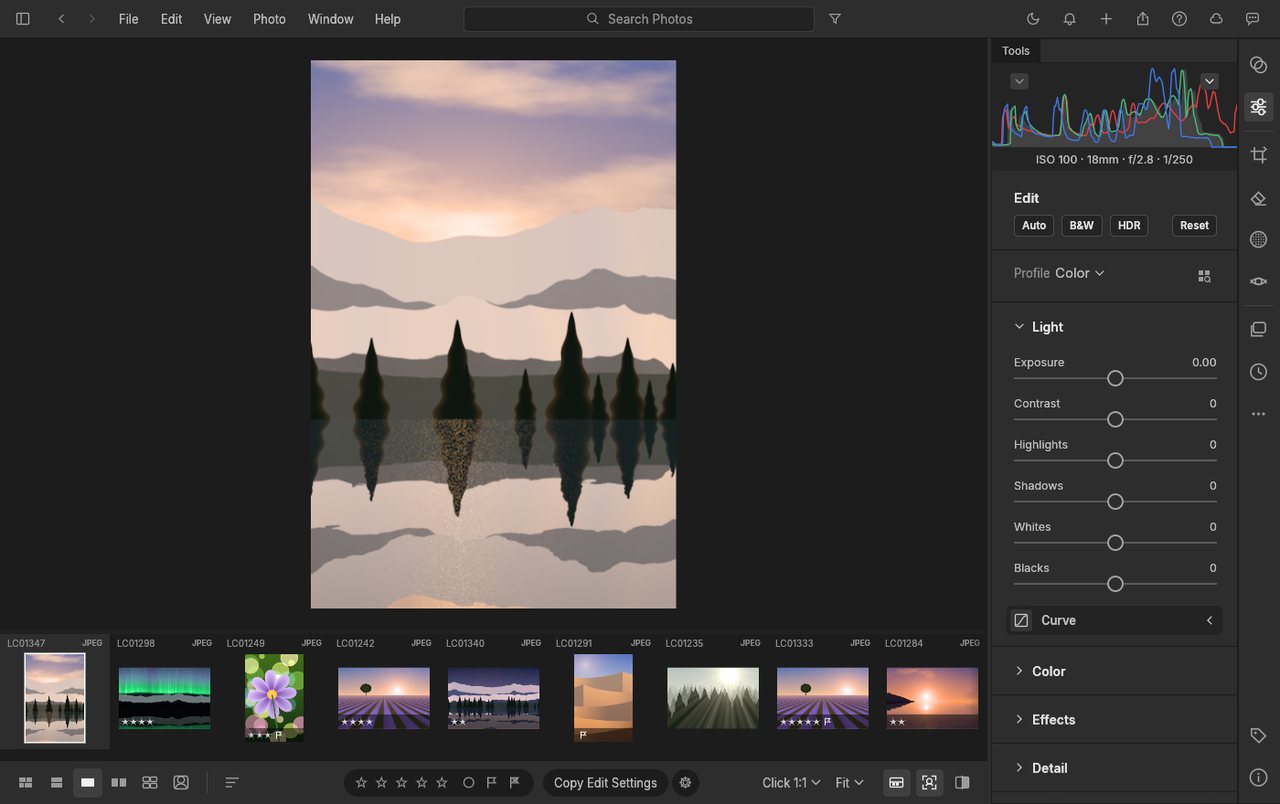
LightCraft v0.10.0 official web build: zero-install access to the grading desk, with histogram, five adjustment groups and the preset strip all in place (screenshot taken on this site, 2026-10-21).
So the conclusion is: the core workflow matches Lightroom — read the histogram → adjust in Light/Color/Effects/Detail order → apply with Copy Edit Settings. For the most common need, one consistent grade across travel or event photos, that is enough; but install the desktop build for batch work.
Bottom line: The closest thing to LR's grading flow: smooth from a single photo up to a dozen; go desktop for batches.
Can it replace Adobe Lightroom — and who is it for?
It is positioned against Lightroom, and its current maturity is in development. Our hands-on take: the web build puts you in a full grading workspace with no install — histogram, five adjustment groups (Light/Color/Effects/Detail), preset strip and Copy Edit Settings are all there, and the workflow follows LR. The caveats are an English interface and browser memory limits on large files and batches.
- Good for: consistent grading of travel, event and product photos; trying an LR-style workflow without installing anything; batches of up to a dozen or so.
- Not for: RAW formats, batches in the thousands, professional colour management (calibrators/ICC), or retouching work such as object removal and sky replacement (use PhotoCraft for that).
How to get started
- Start with the web build: download
lightcraft-web-*.zipfrom the official release, unzip it, and open it with any static server. Your photos stay on your machine. - For batch work, install the desktop build: the official release ships Linux AppImage / .deb / .rpm, macOS and Windows; or use ArtCraft Launcher for a one-click install.
- Run 5-10 photos from the same scene through it first (read the histogram → adjust one group → apply with Copy Edit Settings → export) to confirm the colour and output format match what you expect.
Star counts and versions on this page were checked against GitHub on 2026-10-21.
Related apps
- PhotoCraft — Photoshop alternative (web build tested here)
- VectorCraft — Illustrator alternative (tested here)
- FilmCraft — Premiere Pro alternative

Continuously updated
ArtCraft ships weekly. Scan the QR code to follow our WeChat account for release notes and hands-on updates.