PdfCraft Review: Open a PDF Right in the Browser, With 16 Feature Entries
An Acrobat alternative: a PDF workbench for reading, organizing, merging, splitting, encrypting, annotating, forms, OCR, and signing.
Independent third-party directory, not the official site. Always download from official channels.
What you're doing: Read a PDF / merge or split one / annotate / fill a form / encrypt or sign a PDF
PdfCraft is a full PDF workbench, not a single-purpose "PDF to Word" converter. Its typical job is "process this PDF" — merge, split, annotate, fill forms, add signatures, check accessibility.
| How fast can I open a PDF? | The official web build accepts a ?file=URL parameter to open a specific file directly (we tested ?file=test.pdf; a relative path works, with no extra setup for same-origin), and the document area renders immediately |
|---|---|
| There are 16 feature entries | Read PDF / Write PDF / Merge and split / Annotate (several kinds) / Tables / Forms / OCR / Encrypt and sign / Accessibility check… (all visible in the left sidebar screenshot) |
| Do I need to install it? | No. The web build (WebAssembly) runs in the browser — no install, no registration, files never leave your machine. It also works offline (the project states the web build has no server component) |
| Can I use it online? | Yes, we host the official web build: wasm.cosmocat.dev/pdfcraft/ (free, no sign-up, files never leave your machine; work lives only in the browser and is gone when you close the tab) Interface: all localized text renders as empty boxes, though the features still work Version: our hosted build is v0.10.1; upstream is already at v0.11.0 (we are tracking it) |
- Download
pdfcraft-web-*.zipfrom the official release (unzip it and openindex.htmlwith any static server), or install the desktop build as AppImage / .deb / .rpm - To open a specific file: append
?file=your-file-urlto the address (same-origin lets you use a relative path such as?file=test.pdf; cross-origin requires the other side to allow CORS) - Pick a task in the left sidebar (read / write / merge and split / annotate / OCR / forms / sign / encrypt), do the work in the right-hand toolbar, and use the search box at the top for full-text search (
Ctrl+K) - Document Properties at the top lets you set title, author, subject, and keywords; tick Accessibility Checker to run an accessibility self-check
When to switch to something else: For scanned-document OCR, complex XFA forms, Office conversion, signing tokens, professional Preflight / PDF-X-UA, or stable commercial-grade support — keep using Acrobat or a dedicated PDF tool for now.
Hands-on test (2026-10-21, official web build v0.10.1)
This time we actually got the official web build running, and actually opened a PDF with ?file= (local Ubuntu + pdfcraft-web-0.10.1.zip from the official release, opened in the browser, zero install throughout).
- The web build starts with no install and lands you in the full workbench: left sidebar, document area in the middle, right-hand toolbar, and the search box at the top (
Ctrl+K) - We opened a real PDF: using the
?file=parameter documented by the project (relative path?file=test.pdf), the file loaded directly, a document tab appeared at the top, the page rendered its text correctly, and the page number 1, 115% zoom, paging and fullscreen tools all worked - We counted 16 feature entries in the left sidebar: read PDF, write PDF, merge, split, annotate (pencil / highlight / text box / stamp / signature and more), tables, forms, OCR, encrypt, sign, accessibility check, and others
- 100% of the localized interface renders as boxes (
□□ PDF,□□□□); only English survives (PDF / Discord / GitHub / ArtCraft / Ctrl+K / 115%) - We ruled out "it's my machine": (1) the same browser renders Chinese in ordinary HTML perfectly (Noto Sans CJK SC and AR PL UMing CN both fine); (2) with
Accept-Languageset to zh-CN and to en-US, the boxes appeared in exactly the same places → nothing to do with locale; (3) the official README roadmap lists "the Chinese interface font" as an item to fix in the next stage - The only fonts embedded in the wasm are
Ubuntu-LightandNotoEmoji-Regular— no CJK font at all; the project's Japanese font comes from an optional craft-fonts repo that the official release does not include → the conclusion is that the web build is missing a Chinese font, not that the machine lacks one
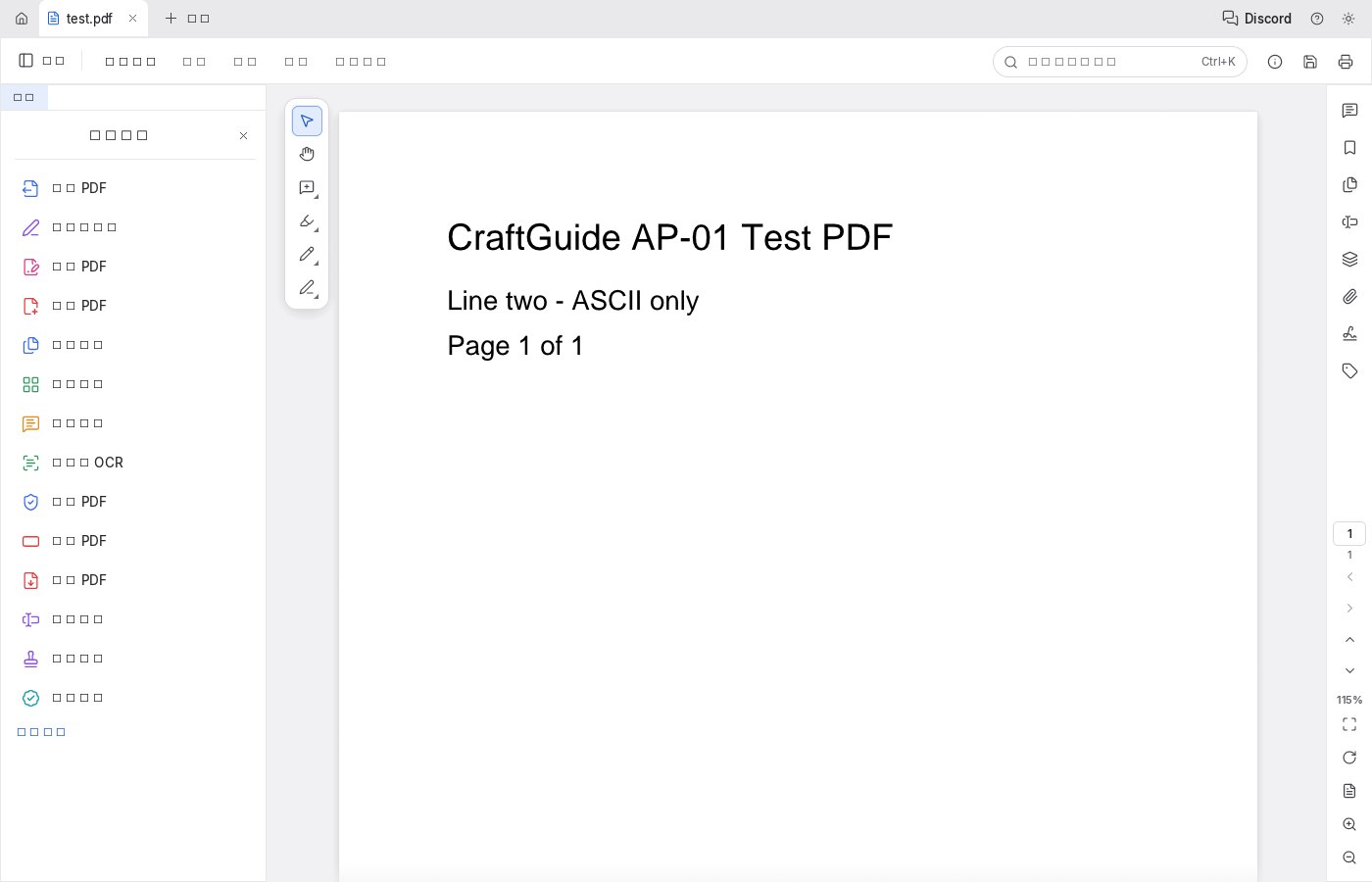
PdfCraft v0.10.1 official web build: opening a PDF directly with ?file=test.pdf, with the document rendering correctly (screenshot from our test on 2026-10-21). Page 1, 115% zoom.
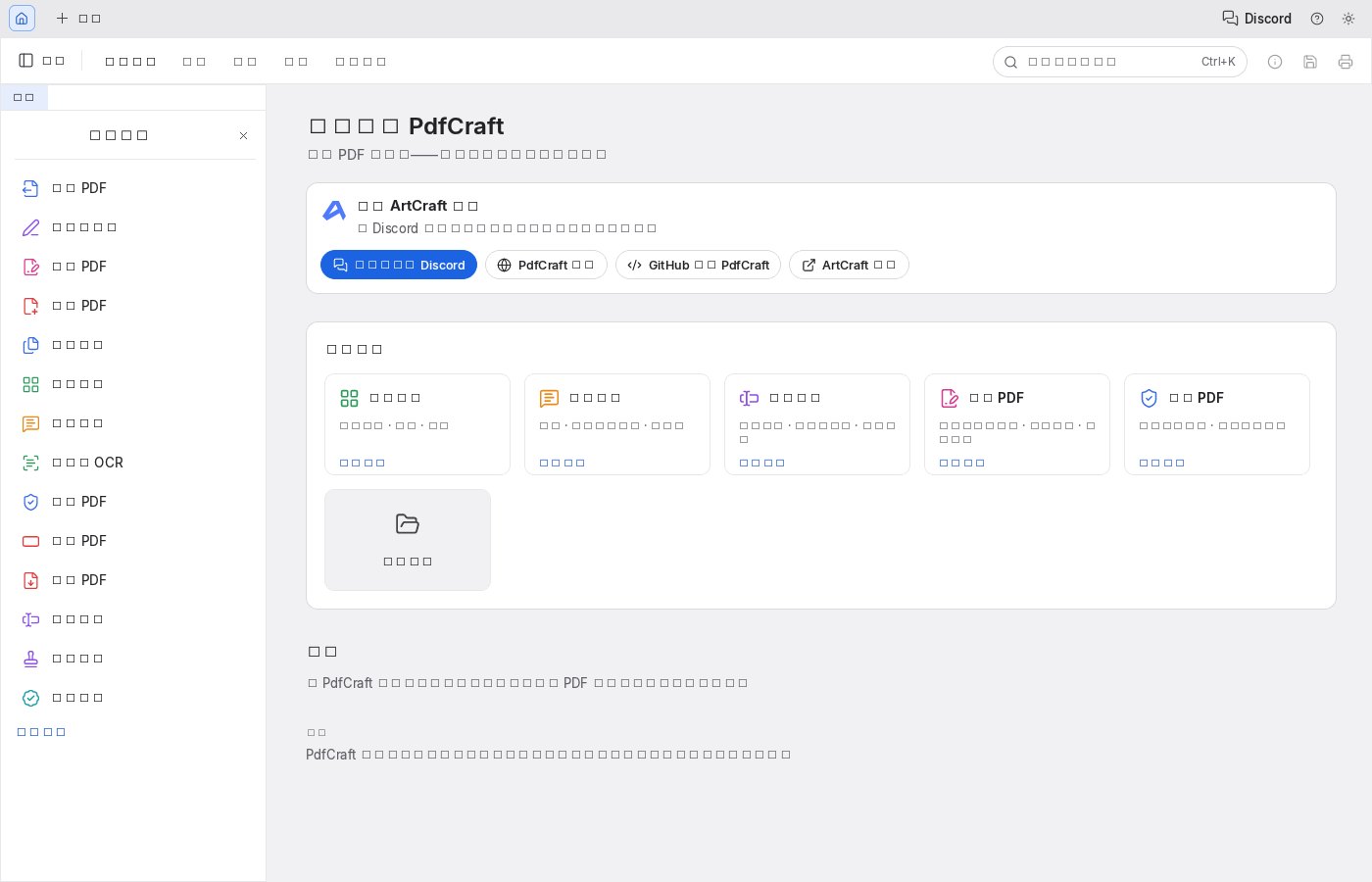
Localized text in the same version and the same browser: everything is a box (tofu), while English is fine. We confirmed this is unrelated to the browser language setting — the web build simply doesn't bundle a Chinese font.
So the conclusion is: functionally it is real (opening, rendering, search, annotation, merge and split all work), but the web build currently has no usable localized interface — for anyone who needs a Chinese-language UI this is a hard blocker, and it is the first thing to know before you use it. The project has given no timeline for whether the desktop build ships Chinese fonts, or when this will be fixed.
Bottom line: It is a tool with real features and a missing Chinese font: try it for what it can do, but wait for the official fix if you need a Chinese interface — which is exactly why this site exists (to scout the pitfalls for you first).
Can it replace Adobe Acrobat — and who is it for?
It is positioned against Acrobat, but current maturity is early alpha. What we found: the web build's features are real (it opens and renders PDFs with no install, and 16 feature entries work), but all localized text renders as boxes, and the project itself lists the Chinese font as an open item. It is closer to a free rehearsal space for a professional PDF tool than a full Acrobat replacement.
- Good for: everyday PDF reading, merging and splitting, annotating, filling forms, and simple signing and encryption; people willing to work in English (or to recognize functions by icon); a lightweight PDF tool where nothing needs installing and files never leave your machine.
- Not for: anyone who needs a Chinese-language interface (the current web build has no Chinese font); scanned-document OCR, complex XFA forms, Office document conversion, professional Preflight / PDF-X-UA, signing tokens, and other serious delivery scenarios.
How to get started
- To try the features: download
pdfcraft-web-*.zipfrom the official release and openindex.htmlwith any static server. No install, no registration, files never leave your machine. - To work on a specific file: append
?file=file-urlto the address (same-origin lets you use a relative path; cross-origin needs CORS from the other side). The project documentation also notes that if you start working before the download finishes, the file opens in a background tab. - Install the desktop build for long-term use: the official release offers Linux AppImage / .deb / .rpm / tar.gz, a macOS pkg, and Windows, or use ArtCraft Launcher for a one-click install (it matches your system version and keeps everything updated later).
- Run a complete pass on a file you don't care about first (open → annotate or merge → export) to confirm format compatibility and acceptable performance before moving your daily workflow over.
Star counts and versions on this page were checked directly on GitHub on 2026-10-21; the web build downloads about 14 MB (gzipped) of wasm on first load.
Related apps

Continuously updated
ArtCraft ships weekly. Scan the QR code to follow our WeChat account for release notes and hands-on updates.